

Check if AuditD can be used#
- To start AuditD temporally with this command:
bitninjacli --module=MalwareDetection --use-auditd - Check if the necessary AuditD rules are generated. You can do that with
auditctl -l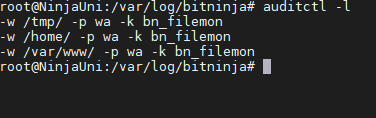
- AuditD will log to the same file so you can check if AuditD is running with
tail -f /var/log/bitninja/inotify/inotify.log
AuditD on RPM distributions#
If SELinux is enabled, AuditD File Monitoring System won't be able to start. Because of this, please set SELinux to disabled in the /etc/selinux/config file and reboot your system.
sudo bash -c 'cat > /etc/selinux/config <<EOF
# This file controls the state of SELinux on the system.
# SELINUX= can take one of these three values:
#     enforcing - SELinux security policy is enforced.
#     permissive - SELinux prints warnings instead of enforcing.
#     disabled - No SELinux policy is loaded.
SELINUX=disabled
# SELINUXTYPE= can take one of three values:
#     targeted - Targeted processes are protected,
#     minimum - Modification of targeted policy. Only selected processes are protected.
#     mls - Multi Level Security protection.
EOF'
Enable AuditD permanently#
You can do this from the BitNinja dashboard from the Configuration menu. You can apply the changes explained below on a per-server basis or a server group's level, or you can apply it to your whole account.
- Open the Configuration menu on your BitNinja dashboard.
- Select the setting level on the left side. (server-level, server group-level, account-level)
- Select the Malware Detection module.
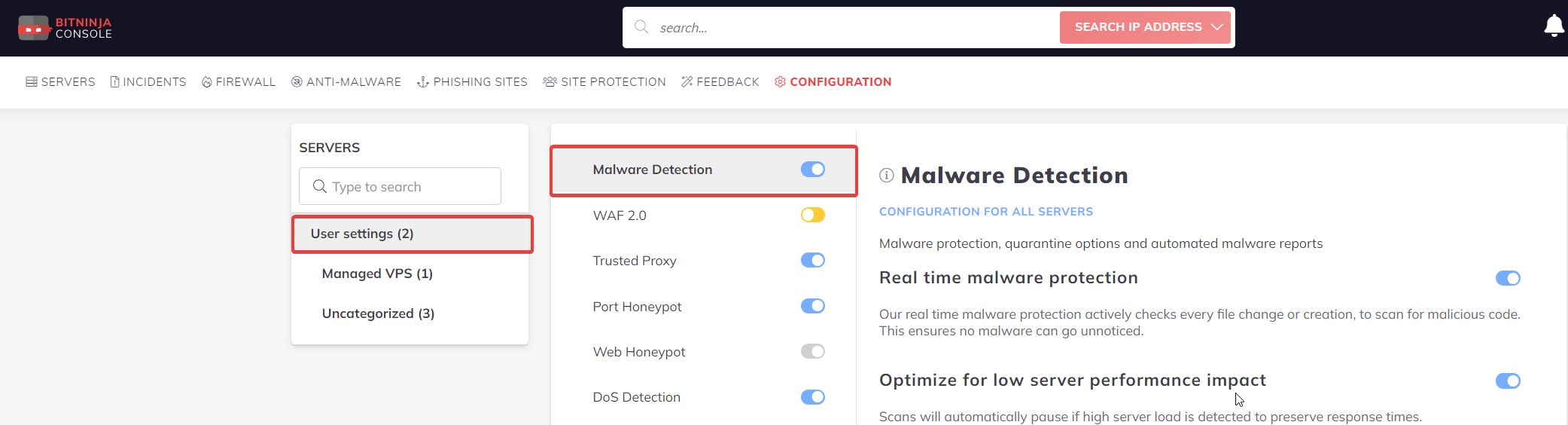
- Scroll down and select the "Advanced settings" menu at the bottom.
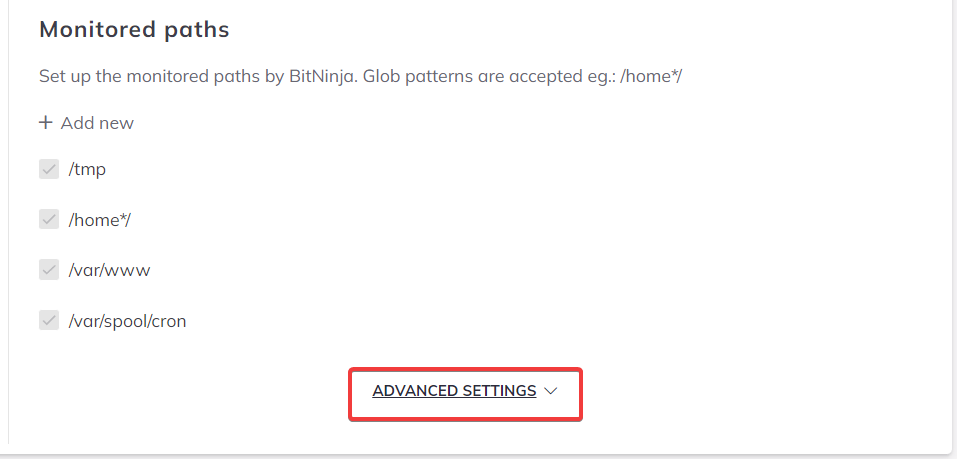
- Change the File system monitor to auditd.
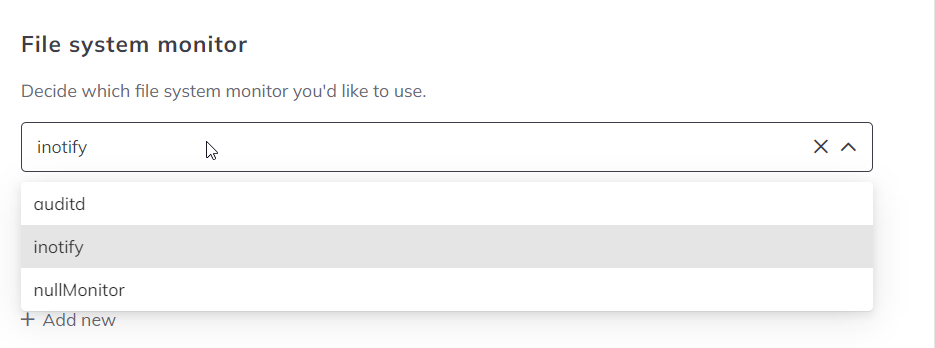
- Click on the Save button at the top of the page.

- Restart BitNinja with the
service bitninja restartcommand.